
This article is to help LA GATOR schools update their school rosters and remove students who aren't actually enrolled at their school.
Schools now have a feature that allows them to flag when a student has withdrawn or never attended their school. To use the feature, the school must have previously verified the student’s enrollment request. Updating the student’s status will remove the student from the Odyssey school roster and prompt the family to either update their school selection or opt out of the program, if needed.
Schools are expected to monitor their student rosters in Odyssey throughout the year to ensure they remain aligned with school records. This helps confirm that only students who are actually enrolled at your school remain on your roster.
Initial Roster Review Deadline
As an initial roster review, schools are required to complete this check by Thursday, August 13, 2026.
After this initial review, schools should continue updating student statuses in Odyssey any time a student withdraws, never attends, or is otherwise no longer enrolled at the school.
Which Students Should You Review?
For purposes of this roster review, you should update a student’s status if:
The student withdrew from your school.
The student never attended your school.
The student is otherwise no longer enrolled at your school.
The students you review may have one of the following Student Statuses:
| Student Status (Application Status) | Definition |
| Approved | The student has opted into the program and will be receiving funds. |
| Approved - Awaiting Opt In | The student is approved and must complete the opt-in process to participate in the program. These students were previously On Hold because of the missing assessment requirement and have been given an opt in extension. |
| Approved - On Hold | The student is approved, but access to funds is paused because the assessment requirement for the 2025–2026 program year has not been met. The student may be reinstated once the Louisiana Department of Education receives and confirms the required assessment. |
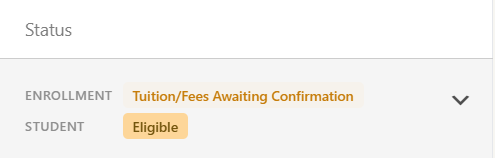
| Eligible | The student meets the program’s eligibility requirements but has not been approved for funding. Students in this status remain on the waitlist unless additional funding becomes available. If students are selected from the waitlist, they will be chosen according to the program’s prioritization guidelines, and Odyssey will notify their families. Reviewing or updating a student’s enrollment status helps keep school rosters accurate but does not guarantee approval or funding. |
Please Note: The Student Status is the student’s Application Status and can be found on the right side of the student’s profile in the Student Enrollment & Fees 2026-2027 tab.
Video Tutorial
Duration: 4:02 Min
Step-by-Step Instructions:
Step 1: Log in to Your Odyssey School Account
Step 2: Click on [Student Enrollment & Fees]
From your dashboard, navigate to your student roster by clicking on [Student Enrollment & Fees].
Step 3: Locate the Student
Find the student who is no longer enrolled at your school or who never attended.
You should update a student’s status if:
- The student withdrew from your school.
- The student never attended your school.
- The student is otherwise no longer enrolled at your school.
Note: You will not be able to update a student if you have previously denied their enrollment request, if they have changed educational setting selection, or if their enrollment is inactive.
Step 4: Open the Student’s Profile
Select the student’s profile from your roster.
Step 5: Select the Appropriate Status Button
On the student’s profile, select the appropriate button:
- Withdrawn if the student was previously enrolled but has since withdrawn.
- Student Did Not Attend if the student was verified but never attended your school.
Step 6: Confirm the Update
Review your selection and confirm the update. If your student has withdrawn, you will be asked to add the withdrawal date. If the student did not attend, you will be prompted to add the date they did not attend.
Once confirmed, the student will be removed from your school roster in Odyssey.
Step 7: Continue Monitoring Your Roster
After completing the initial roster review, continue monitoring your roster throughout the year. If a student withdraws, never attends, or is no longer enrolled at your school, update their status in Odyssey as soon as possible.
Keeping your roster accurate helps ensure program records remain up to date and that funding is only associated with students who are actually enrolled at your school.