
This article is intended to help Louisiana schools understand how to download a roster of the students with active enrollments at their school.
Step 1: Log into your Odyssey School Account
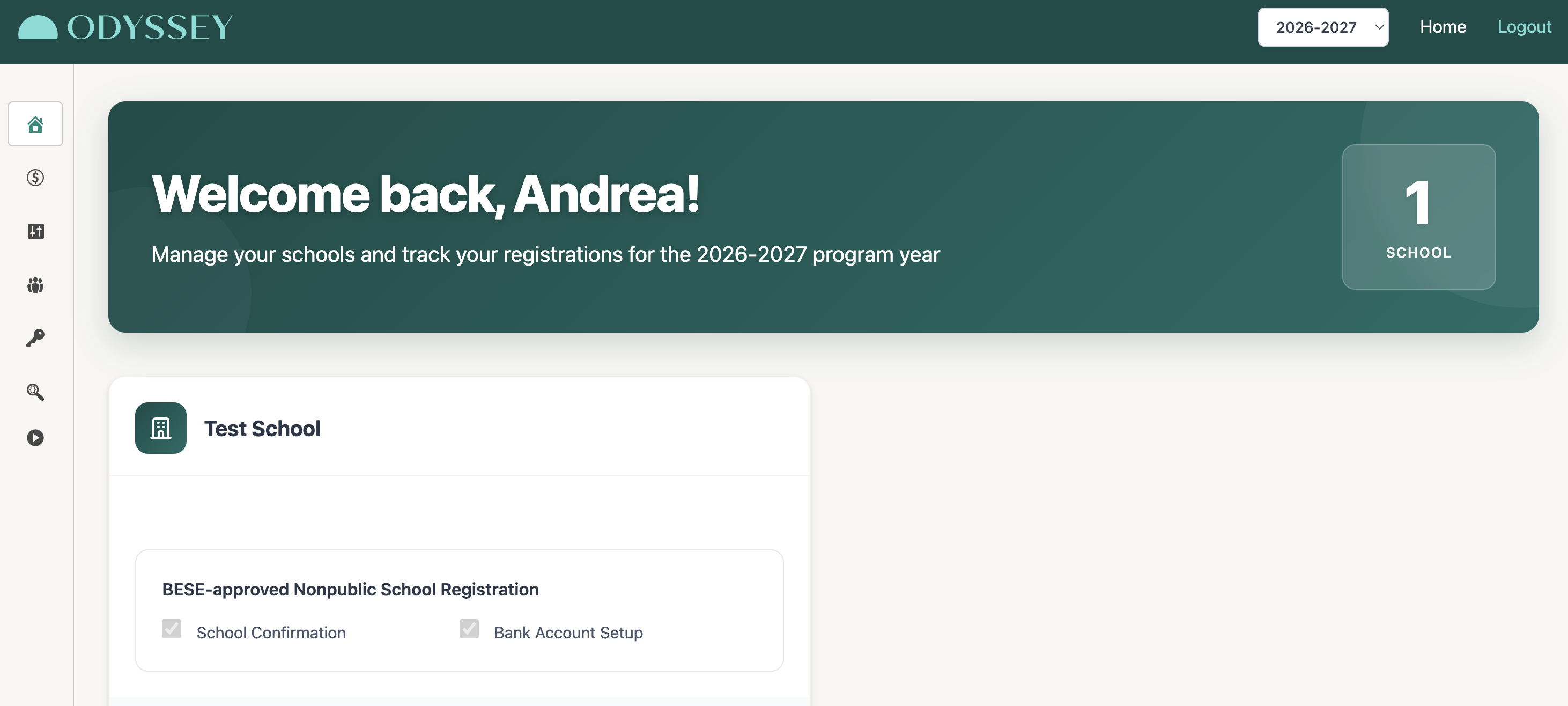
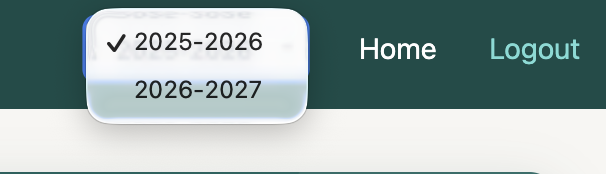
Step 2: Select the program year you're trying to review by clicking on the program year filter in the upper right corner.
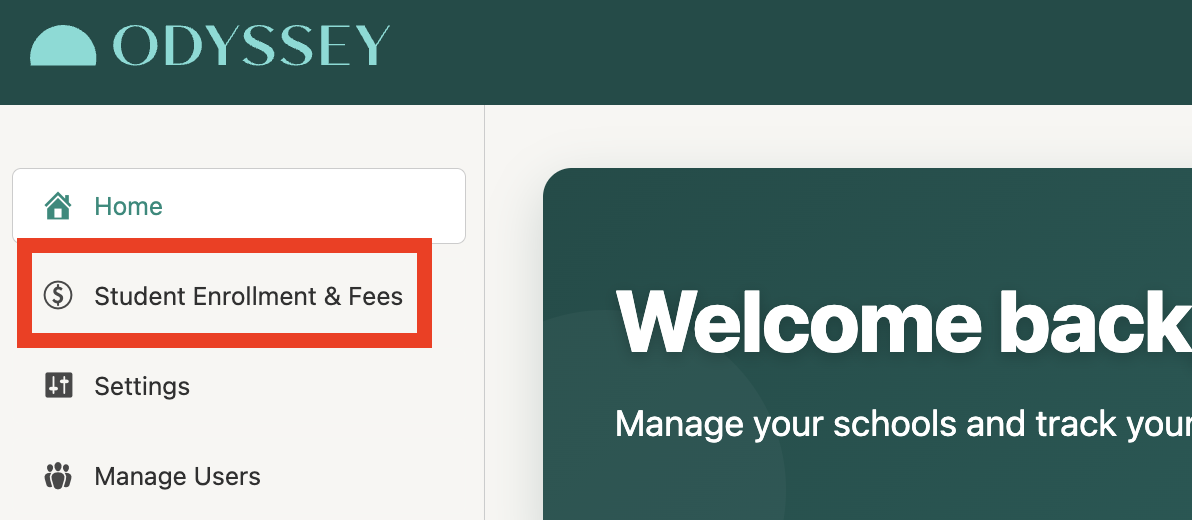
Step 3: Click on the Student Enrollment & Fees Tab.
Step 4: Ensure you're filtering for All Active Students
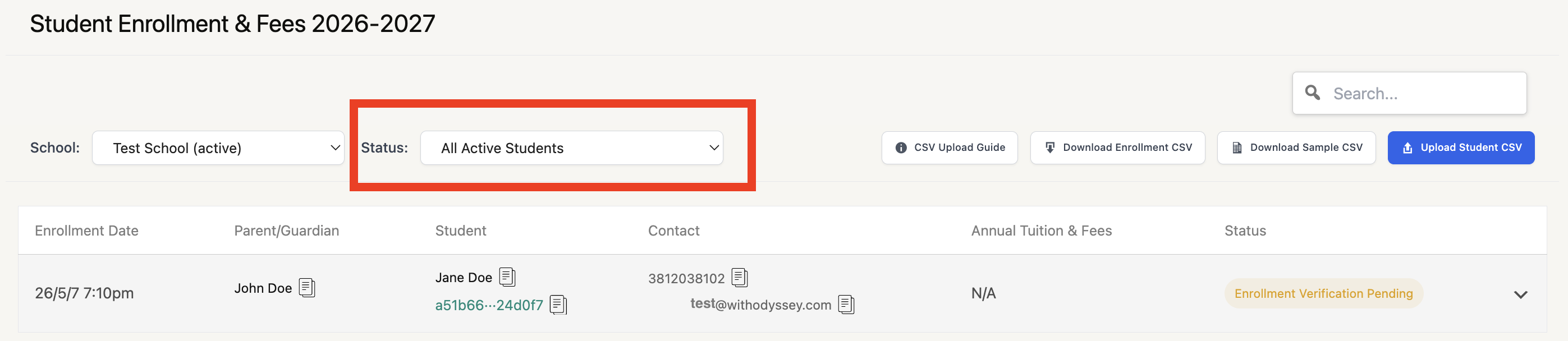
If you wish, you may filter for one of the following and download a reduced roster:
To do so, select the filter you're interested in and click [Download Enrollment CSV]. Please refer to this article to understand the different filters and their meanings: What Do The Filters and Statuses On My School Portal Mean?
Please note: The Inactive Enrollments filter shows students whose enrollment request you've denied or who selected your school but have since selected another educational setting.
Step 5: Click [Download Enrollment CSV]

Step 6: Review the downloaded file
Once you have downloaded the file, you may use the filter feature in Excel to identify the specific information you're searching for.